
SSL Certificate Chain: What It Is and How to Fix It
A missing intermediate certificate is the most common SSL misconfiguration. Learn what a certificate chain is and how to fix a broken one on Nginx, Apache, or Caddy.
tl;dr — An SSL certificate chain is the sequence of digital certificates that links your website’s certificate to a root Certificate Authority (CA) browsers trust: your leaf certificate → one or more intermediate certificates → a trusted root certificate. Your server must send the leaf and intermediates; the root is pre-installed in the client. If any intermediate is missing, mobile browsers and API clients fail — even though desktop Chrome may still work due to caching.
What Is an SSL Certificate Chain?
An SSL certificate chain — also called a certificate trust chain or chain of trust — is a sequence of certificates that connects your website’s certificate back to a root Certificate Authority (CA) that browsers inherently trust.
Think of it like a chain of vouchers: your site’s certificate is vouched for by an intermediate CA, which is in turn vouched for by a root CA. Browsers come pre-installed with a list of trusted root CAs. If a browser can follow the chain from your certificate up to a trusted root without any gaps, the connection is trusted. If any link in the chain is missing, the browser shows a security error — even if your certificate itself is perfectly valid.
💡 New to SSL certificates? Before diving into chains, you may want to read What Is an SSL Certificate? A Developer’s Guide for an overview of how certificates work.
The Three Levels of a Certificate Chain
Every certificate chain has the same structure, regardless of which CA issued your certificate:
| Level | Name | What It Is | Who Provides It |
|---|---|---|---|
| 1 (leaf) | Leaf certificate | The certificate issued to your specific domain | You — installed on your web server |
| 2 (middle) | Intermediate certificate(s) | Issued by the root CA to authorize an intermediate CA to issue domain certificates | Your CA — must also be served by your web server |
| 3 (root) | Root certificate | Self-signed certificate from a trusted root CA | The CA — pre-installed in browsers and operating systems |
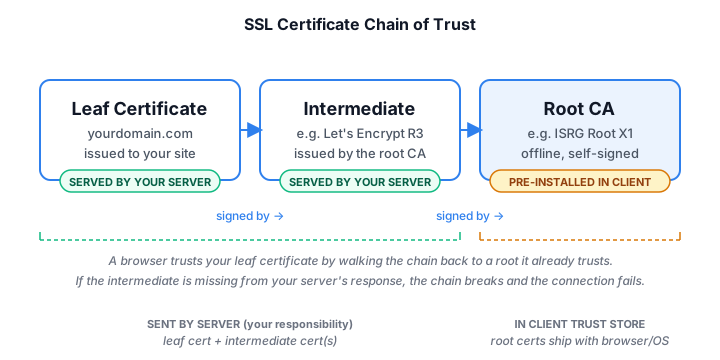
When a browser connects to your site, your server sends the leaf certificate and any intermediate certificates. The browser checks whether the chain connects to a trusted root in its built-in trust store. The root certificate itself is never sent by the server — it’s expected to already be present on the client.
Why the Chain Exists: Root CAs Stay Offline
Root CA private keys are among the most sensitive secrets in internet infrastructure. A compromised root CA could be used to forge trusted certificates for any website in the world — banks, governments, email providers, anything. To protect root private keys, root CAs are kept offline, physically air-gapped from the internet.
Because root CAs are offline, they can’t sign website certificates directly. Instead, they issue intermediate CA certificates to subordinate authorities who do the day-to-day work of signing domain certificates. If an intermediate CA is ever compromised, it can be revoked without touching the root CA or invalidating the entire trust hierarchy.
This is why your server is responsible for serving the intermediate certificate. The root is assumed to be in the client’s trust store. Everything between your leaf certificate and the root must come from your server.
The Most Common Chain Error: Missing Intermediate Certificate
The single most frequent SSL misconfiguration is a missing intermediate certificate. Your leaf certificate is installed, but the intermediate CA certificate is not being served alongside it.
Here’s why this error is so deceptive:
- Desktop browsers often cache intermediates — Chrome and Firefox maintain a local cache of intermediate certificates they’ve encountered before. If a previous site used the same intermediate CA, the browser already has it and won’t notice your missing intermediate.
- Mobile browsers don’t cache — iOS Safari, Android Chrome on fresh installs, and most mobile browsers will fail immediately if the intermediate is missing from the server response.
- API clients and server-to-server calls always fail —
curl, Python’srequests, Node’shttpsmodule, Java’sHttpClient, and nearly every backend HTTP library do not cache intermediates. They reject the connection outright.
This is why a misconfigured chain can pass all your desktop browser testing and still silently break mobile users and backend API integrations in production.
⚠️ Classic incident pattern: You deploy a renewed certificate. Desktop Chrome works fine (it had the intermediate cached from your previous cert). You close the ticket. Three hours later, the mobile app team reports that all API calls are failing with SSL errors. The server is only sending the leaf certificate — no intermediate.
How to Check Your Certificate Chain
Option 1: Authgear SSL Certificate Chain Checker (recommended)
Use the Authgear SSL Checker to visualize your full certificate chain. It shows each level — leaf certificate, intermediate(s), and root — and immediately flags if any intermediates are missing or if the chain fails to connect to a trusted root.
🔒 Run this after every certificate renewal. Let’s Encrypt’s Certbot correctly configures the chain when you use
fullchain.pem— but if you manually install a paid CA certificate, it’s easy to accidentally deploy only the leaf certificate. The SSL Checker catches this instantly.
Option 2: OpenSSL (command line)
You can inspect exactly what your server is serving with OpenSSL:
# View the full certificate chain your server is sending
openssl s_client -connect yourdomain.com:443 -showcerts

# Count the number of BEGIN CERTIFICATE blocks in the output:
# - 2 blocks: leaf + one intermediate (normal for Let's Encrypt)
# - 1 block: leaf only — your intermediate is missing
If you see only one BEGIN CERTIFICATE block, your server is sending only the leaf certificate. The chain is incomplete.
What a Decoded Certificate Chain Looks Like
To see what’s actually inside each certificate in the chain, decode them with openssl x509 -text -noout. Here’s a real example from cloudflare.com (truncated for readability):
# Leaf certificate
Subject: CN = cloudflare.com
Issuer:  C = US, O = Google Trust Services, CN = WE1
Validity:
    Not Before: Apr  3 00:00:00 2026 GMT
    Not After : Jun 30 23:59:59 2026 GMT
Signature Algorithm: ecdsa-with-SHA256
Subject Alternative Name:
    DNS:cloudflare.com, DNS:*.cloudflare.com, ...

# Intermediate certificate (the one your server must also send)
Subject: C = US, O = Google Trust Services, CN = WE1
Issuer:  C = US, O = Google Trust Services LLC, CN = GTS Root R4
Validity:
    Not Before: Dec 13 09:00:00 2023 GMT
    Not After : Feb 20 14:00:00 2029 GMT
Signature Algorithm: ecdsa-with-SHA384

# Root certificate (NOT sent by the server — already in the client trust store)
Subject: C = US, O = Google Trust Services LLC, CN = GTS Root R4
Issuer:  C = US, O = Google Trust Services LLC, CN = GTS Root R4    ← self-signed
Signature Algorithm: ecdsa-with-SHA384
Notice the pattern: the issuer of each certificate matches the subject of the certificate above it. That’s how the browser walks the chain. The root certificate is self-signed — its subject and issuer are identical — and it’s the one your server doesn’t send because it has to already be in the client’s trust store.
How to Fix a Broken Certificate Chain
The fix is always the same concept: configure your web server to send the intermediate certificate alongside your leaf certificate. The exact steps depend on your server and how you obtained your certificate.
If you used Certbot (Let’s Encrypt)
Certbot generates several certificate files in /etc/letsencrypt/live/yourdomain.com/. The most common mistake is using the wrong one:
# fullchain.pem   — Use this: leaf certificate + intermediate(s) combined
# cert.pem        — Not this: leaf certificate only (no intermediate)
# chain.pem       — Intermediate certificate only
# privkey.pem     — Your private key
In your web server config, always reference fullchain.pem as your certificate file, not cert.pem.
Nginx
server {
    listen 443 ssl;
    server_name yourdomain.com;
    ssl_certificate     /etc/letsencrypt/live/yourdomain.com/fullchain.pem;
    ssl_certificate_key /etc/letsencrypt/live/yourdomain.com/privkey.pem;
    ssl_protocols TLSv1.2 TLSv1.3;
    ssl_ciphers HIGH:!aNULL:!MD5;
}
Apache
<VirtualHost *:443>
    ServerName yourdomain.com
    SSLEngine on
    SSLCertificateFile    /etc/letsencrypt/live/yourdomain.com/fullchain.pem
    SSLCertificateKeyFile /etc/letsencrypt/live/yourdomain.com/privkey.pem
</VirtualHost>
Caddy
yourdomain.com {
    reverse_proxy localhost:3000
}

# If providing your own certificate manually:
yourdomain.com {
    tls /path/to/fullchain.pem /path/to/privkey.pem
}
If using a paid CA (manual certificate)
# Combine leaf and intermediate (leaf first, then intermediate)
cat yourdomain.crt intermediate.crt > fullchain.crt
After updating your config, reload your server and verify the fix with the Authgear SSL Checker.
How to Prevent Chain Issues
- Always use
fullchain.pemwhen using Certbot — never referencecert.pemalone. - Test from a clean environment — use the Authgear SSL Checker, which always connects fresh without cached intermediates.
- Test after every certificate change — check the chain immediately after deploying, before closing the deployment window.
- Set up expiry monitoring — tools like UptimeRobot, Checkly, or Datadog can alert you before a certificate expires or the chain becomes invalid.
Frequently Asked Questions
What is an SSL certificate chain?
An SSL certificate chain is the sequence of digital certificates that links your website’s certificate to a root Certificate Authority (CA) that browsers trust. The chain typically has three levels: your leaf certificate, one or more intermediate certificates, and a trusted root certificate.
How does an SSL certificate chain work?
When a browser connects to your site, your server sends the leaf certificate plus any intermediate certificates. The browser walks the chain upward, verifying each certificate’s signature, until it reaches a root certificate already in its trust store. If every link checks out, the connection is trusted. If the chain breaks anywhere, the browser shows a security error.
What is the difference between a certificate and a certificate chain?
A certificate is a single signed credential proving ownership of a domain or identity. A certificate chain is the full path from your certificate up to a trusted root, including every intermediate certificate that signed something below it. Browsers trust roots, not individual leaf certificates — the chain is what proves your certificate was issued by a trusted authority.
What does a certificate chain look like?
When decoded with openssl x509 -text, each certificate in the chain shows its subject (who it identifies), issuer (who signed it), validity dates, and signature algorithm. In a valid chain, the issuer of certificate N matches the subject of certificate N+1, all the way up to a self-signed root. See the decoded example above.
Why is my certificate chain incomplete?
The most common cause is referencing the wrong file in your web server config. With Certbot, use fullchain.pem (leaf + intermediate) — not cert.pem (leaf only). With a paid CA, you may need to manually concatenate the leaf and intermediate certificates into a single file before deployment.
What is fullchain.pem?
fullchain.pem is the file Certbot generates that contains your leaf certificate followed by every intermediate certificate, concatenated in PEM format. Always reference this file in your Nginx, Apache, or Caddy configuration — never cert.pem, which is the leaf certificate alone and will produce a broken chain.
Next Steps
- Check your certificate chain with the free Authgear SSL Checker
- Learn the fundamentals in What Is an SSL Certificate? A Developer’s Guide
- Understand the protocol history in SSL vs TLS: What’s the Difference and Why It Matters