Keycloak Custom Login Page: Themes, Limits and Alternatives
How Keycloak themes work in Keycloak 26, a minimal login theme you can deploy as a folder or a JAR, the caching traps that waste an afternoon, and what to re-test at every upgrade.
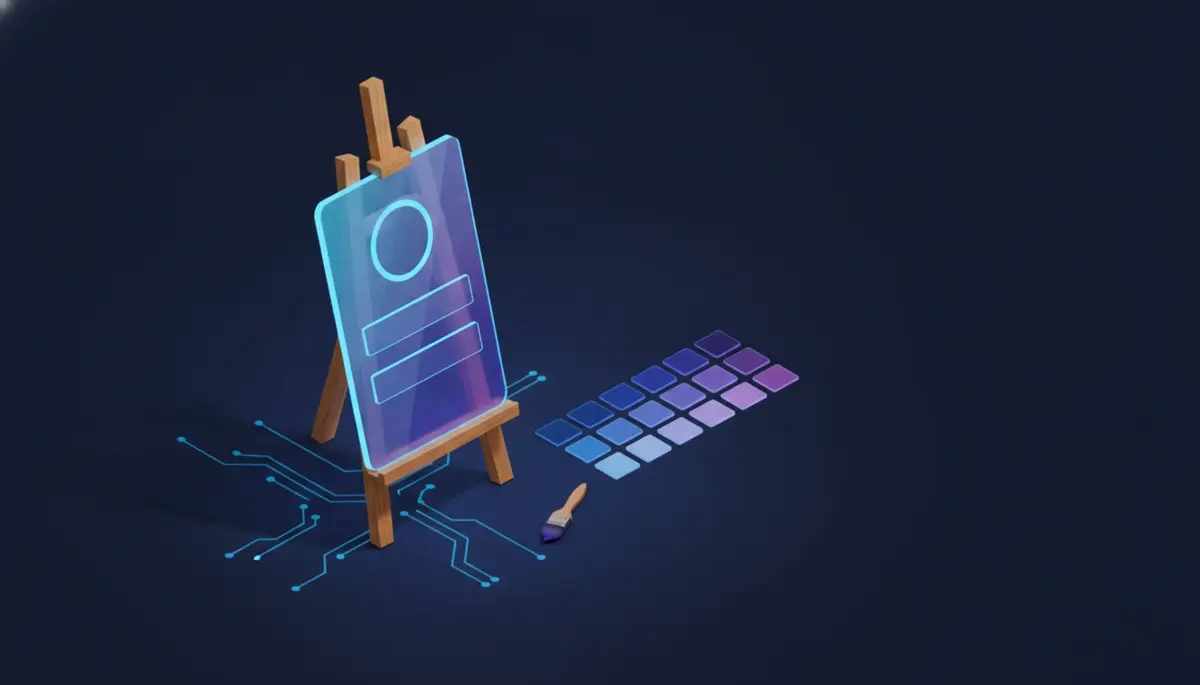
tl;dr: A Keycloak custom login page is a login theme: a folder of FreeMarker templates, CSS, images and messages that extends one of Keycloak’s built-in themes and is selected per realm.
Every Keycloak team hits the same moment. The login page works, but it says “Keycloak” and looks nothing like your product. This guide shows how theming works in Keycloak 26, walks through a small login theme you can deploy today, and covers the caching and upgrade problems that catch most people out.
Everything here is checked against the Keycloak 26.8 documentation, current in October 2026.
How a Keycloak custom login page works
A theme is a set of files that changes how one part of Keycloak looks. Keycloak has five theme types:
- Login: the login, registration, password reset and other forms your users see.
- Account: the Account Console, where users manage their own profile and sessions.
- Admin: the Admin Console.
- Email: the emails Keycloak sends, such as password reset and email verification.
- Welcome: the welcome page an administrator sees on a fresh server.
You set the login, account, admin and email themes per realm, under Realm settings → Themes. Clients can also override the login theme, so one app can have its own look. The welcome theme is set with a server option instead: --spi-theme--welcome-theme=<name>.
What a theme is made of
A theme folder holds one sub-folder per type it provides. Each type can contain:
- FreeMarker templates (
.ftlfiles) that render the HTML. - Stylesheets, scripts and images under
resources/. - Message bundles (
messages/messages_en.propertiesand so on) for the text. theme.properties, which ties it together.
The key settings in theme.properties are:
parent: the theme you extend. You inherit everything you don’t override.import: shared resources to pull in, such ascommon/keycloak.stylesandscripts: space-separated lists of CSS and JS files to load.locales: the languages the theme supports.
Think of it like a CSS cascade for whole files. Keycloak looks for each template, stylesheet or message in your theme first, then walks up the parent chain until it finds one.
Which theme to extend
In Keycloak 26, the default login theme is keycloak.v2, built on PatternFly 5 with automatic dark mode. The older keycloak login theme (v1) is deprecated. The base theme holds the plain templates and messages and is marked abstract, so since 26.6 you can no longer select it directly in the Admin Console.
For a branded login page, extend keycloak.v2. You get the current layout and accessibility work for free, and you only override what you need.
The newer options: Quick Theme, React and Keycloakify
There are three newer routes, and they are easy to confuse:
- Quick Theme is a preview feature in the Admin Console. You set logos and colours, see a live preview and download a theme JAR. Turn it on with
--features=quick-theme. See the Quick Theme guide. - React npm packages.
@keycloak/keycloak-account-uiand@keycloak/keycloak-admin-uilet you build your own Account or Admin Console in React. They do not cover the login pages. See Creating your own Console. - Keycloakify is a community project, not part of Keycloak. It lets you write login, account, email and admin themes in React (with Angular and Svelte support too) and packages them as a JAR. It isn’t maintained by the Keycloak project, so treat it as a third-party dependency you’ll need to keep up to date.
If your changes are mostly logo, colours and fonts, start with CSS on top of keycloak.v2. Rewriting templates should be the last resort, for reasons covered below.
Build a minimal login theme
This example creates a theme called acme that keeps Keycloak’s layout and changes the colours, background and logo.
1. Lay out the files
themes/
└── acme/
    └── login/
        ├── theme.properties
        ├── messages/
        │   └── messages_en.properties
        └── resources/
            ├── css/
            │   └── custom.css
            └── img/
                └── acme-logo.svg
2. Write theme.properties
parent=keycloak.v2
styles=css/styles.css css/custom.css
keycloak.v2 loads its own css/styles.css. Setting styles replaces the parent’s list, so you name the parent’s file first and yours last. Yours wins wherever the two disagree.
⚠️ Common mistake: naming your file
css/styles.css. It then hides the parent’s stylesheet of the same name, and the page loses its layout.
3. Override the CSS
The keycloak.v2 login stylesheet exposes CSS variables for the logo and the coloured bar at the top of the card, and PatternFly 5 drives the button colours.
:root {
  --keycloak-logo-url: url("../img/acme-logo.svg");
  --keycloak-logo-height: 48px;
  --keycloak-logo-width: 200px;
  --keycloak-card-top-color: #0b5fff;
  --pf-v5-global--primary-color--100: #0b5fff;
  --pf-v5-global--primary-color--200: #0848c2;
}

.login-pf body {
  background: #f4f6fb;
}
The logo variables only apply where the page contains a kc-logo-text element. To show it, set the realm’s HTML Display name (Realm settings → General) to:
<div class="kc-logo-text"><span>Acme</span></div>The theme’s CSS hides the text and shows your logo in its place.
4. Change the wording
Override any message key in messages/messages_en.properties. Keys you don’t list fall back to the parent theme.
loginAccountTitle=Sign in to Acme
doLogIn=Continue
5. Optional: add a footer
Since Keycloak 26.0, you can add a footer to keycloak.v2 login pages without overriding the main template. Create login/footer.ftl:
<#macro content>
<div>
    <ul id="kc-login-footer-links">
        <li><a href="https://acme.example/help">Help</a></li>
        <li><a href="https://acme.example/privacy">Privacy</a></li>
    </ul>
</div>
</#macro>
6. Run it locally in a container
Mount the theme folder into the official image and start in development mode:
docker run -p 127.0.0.1:8080:8080 \
  -e KC_BOOTSTRAP_ADMIN_USERNAME=admin \
  -e KC_BOOTSTRAP_ADMIN_PASSWORD=admin \
  -v "$(pwd)/themes/acme:/opt/keycloak/themes/acme" \
  quay.io/keycloak/keycloak:26.8.1 start-dev
Open http://localhost:8080, sign in as admin, create a realm, then go to Realm settings → Themes, set Login theme to acme and save. Open http://localhost:8080/realms/<your-realm>/account to see the login page.
Deploy the theme as a JAR
Copying folders works for development. For production, the themes guide suggests packaging the theme as a JAR, which gives you one versioned file to ship to every node in a cluster.
The JAR needs a META-INF/keycloak-themes.json file and the theme under theme/:
acme-theme/
├── META-INF/
│   └── keycloak-themes.json
└── theme/
    └── acme/
        └── login/
            ├── theme.properties
            ├── footer.ftl
            ├── messages/messages_en.properties
            └── resources/...
{
"themes": [{
"name": "acme",
"types": ["login"]
}]
}A JAR is a ZIP file, so either tool works:
cd acme-theme
jar cf ../acme-theme.jar META-INF theme
# or: zip -r ../acme-theme.jar META-INF theme
Put the JAR in Keycloak’s providers/ directory and restart. In a container, add it before the build step, as the containers guide describes:
FROM quay.io/keycloak/keycloak:26.8.1 AS builder
ENV KC_DB=postgres
COPY --chown=keycloak:keycloak acme-theme.jar /opt/keycloak/providers/
RUN /opt/keycloak/bin/kc.sh build

FROM quay.io/keycloak/keycloak:26.8.1
COPY --from=builder /opt/keycloak/ /opt/keycloak/
ENTRYPOINT ["/opt/keycloak/bin/kc.sh"]
Run the image with start --optimized and your usual database and hostname settings.
Themes contain FreeMarker templates that run inside the Keycloak process, so a malicious template can run code on your server. Only deploy themes you trust, and limit who can write to themes/ and providers/.
Caching: why your changes don’t show up
Most “my theme isn’t working” problems are caching. There are three layers:
-
Keycloak’s theme and template caches.
start-devturns both off.startkeeps them on. If you test against a production-style start, disable them while you work:bin/kc.sh start \ --spi-theme--static-max-age=-1 \ --spi-theme--cache-themes=false \ --spi-theme--cache-templates=falseTurn caching back on in production. It matters for performance.
-
The gzip cache on disk. If you redeployed a theme while caching was on, delete
data/tmp/kc-gzip-cachein the Keycloak directory and restart. -
Your browser. It can hold on to old CSS and images. The
static-max-age=-1option above helps; otherwise hard-refresh or test in a private window.
Two more traps:
- JARs are read at start-up. Folder themes in development mode pick up edits straight away. A rebuilt JAR in
providers/needs a restart. - The wrong realm or client. Check the theme is set on the realm you’re testing, and that the client doesn’t override the login theme.
What breaks when you upgrade Keycloak
Keycloak’s upgrading guide has a whole section on migrating themes, and it asks three things of you after each upgrade:
- Templates. If you overrode a template, compare the new base template with yours and copy across the upstream changes.
- Messages. Check for added, renamed and changed keys.
- Styles. If you extend a Keycloak theme, diff the built-in stylesheets between the old and new versions.
Recent 26.x releases show why this matters:
- 26.5 stopped allowing HTML and HTML entities in login theme message keys (except
termsText). - 26.6 marked the
basethemes abstract, so they no longer appear in the theme picker. - 26.7 moved FreeMarker to 2.3.32 defaults, which can affect templates that rely on legacy behaviour, and changed button layouts across login pages.
- 26.8 redesigned the identity provider buttons. Themes that override
social-providers.ftlor style the provider icons may render wrongly.
The pattern is clear. A theme that only adds CSS and messages on top of keycloak.v2 usually survives an upgrade with a quick visual check. A theme that copies and edits templates needs a diff at every minor release, which is roughly four times a year. Our Keycloak upgrade guide covers the rest of the upgrade, from database migration to rollback.
Practical habits that help:
- Keep the theme in its own Git repository and build the JAR in CI.
- Override as few templates as you can. Prefer CSS, messages and
footer.ftl. - Keep screenshots of every login page (login, register, reset password, OTP, passkey, error) and compare them after each upgrade.
- Test the theme against the new version in staging before you upgrade production.
Where Keycloak themes hit their limits
Themes are powerful, but some things are awkward:
- Changing the flow isn’t a theme job. Adding a step, a field or a new login method means configuring authentication flows or writing a Java authenticator, not just editing templates.
- Login pages are server-rendered FreeMarker. If your front-end team works in React, they either learn FreeMarker or adopt a community tool such as Keycloakify.
- Every customisation is code you maintain. Templates, messages in each language and JARs all need testing at each upgrade. We put numbers on that in Keycloak pricing.
If your team is happy owning that, Keycloak themes will take you a long way.
The alternative: a hosted login UI you style in a portal
Some teams decide the theme isn’t where they want to spend their time. Authgear, the open-source identity platform we build, takes a different approach: you set the logo, colours and light or dark theme in a visual editor in the portal, and you can edit the CSS and HTML on every plan, self-hosted included. If you’d rather own the screens completely, you can build your own UI on the Auth Flow API. Like Keycloak, it’s open source under Apache-2.0. See how the two compare on our Keycloak alternative page, or read Authentik vs Keycloak for a wider view. Comparing Keycloak with hosted services instead? See Keycloak vs Auth0, Keycloak vs Okta and Keycloak vs Zitadel.
Frequently Asked Questions
How do I customise the Keycloak login page?
Create a login theme that extends the built-in keycloak.v2 theme, add your own stylesheet and images, deploy it to the themes directory or as a JAR in providers/, then pick it under Realm settings, Themes, Login theme.
Where do Keycloak themes go in the Docker image?
Theme folders go in /opt/keycloak/themes. Theme JARs go in /opt/keycloak/providers, added before you run kc.sh build in your Containerfile.
Why don’t my Keycloak theme changes show up?
Usually caching. Start-dev turns theme and template caching off, but start does not. Use the theme caching options while developing, delete data/tmp/kc-gzip-cache, and hard-refresh your browser.
Can I build a Keycloak login theme with React?
Not with Keycloak’s own tooling. Keycloak’s React packages cover the Admin and Account Consoles, and login pages are FreeMarker templates. Keycloakify, a community project, lets you build login themes in React, Angular or Svelte and packages them as a JAR.
Do Keycloak themes break when you upgrade?
They can. Keycloak’s upgrading guide tells you to compare any templates you overrode with the new base templates, and to check renamed messages and changed styles. A theme that only adds CSS is far less likely to break than one that overrides templates.